A great PowerPoint presentation can deliver valuable information, but static slides often struggle to keep viewers engaged. What if your slides could speak, explain, and present themselves like a real person?
Thanks to AI PPT-to-video converter, turning PowerPoint files into professional-looking videos is now easier than ever. In this article, we'll explore how to convert PowerPoint to a video with an AI avatar and voiceover, and how this approach can make your content more engaging and accessible.
Editable Presentation Video You Might Love


Can't Miss: How to Insert a GIF in PowerPoint - Easy and Fast>
Step-by-Step: How to Convert PowerPoint into an Video with AI Narration
FlexClip's AI PPT-to-video converter allows you to upload a PowerPoint file and automatically transform it into a video. These AI-powered tools take your slides to the next level by turning them into polished, professional videos—complete with voiceovers, subtitles, and dynamic animations—saving you both time and effort.
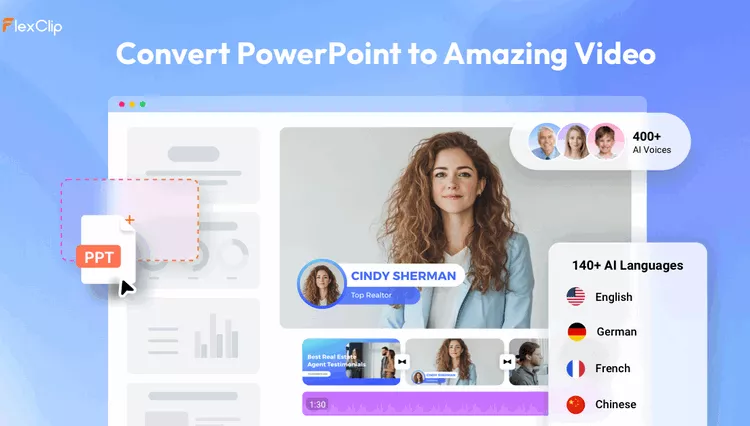
Image Board: Convert PPT to Video Online with AI PPT to Video Converter
Check the steps below to turn your PowerPoint slides into engaging videos in minutes with FlexClip. Easily create dynamic presentations with AI avatars, natural voiceovers, and auto-generated captions.

Step 1 Upload Your Powerpoint File
Start by uploading your presentation file to FlexClip’s AI PPT-to-video tool. It supports PPT, PPTX, and PDF formats. The tool automatically analyzes your content structure, identifies key topics, and prepares your slides for video creation.
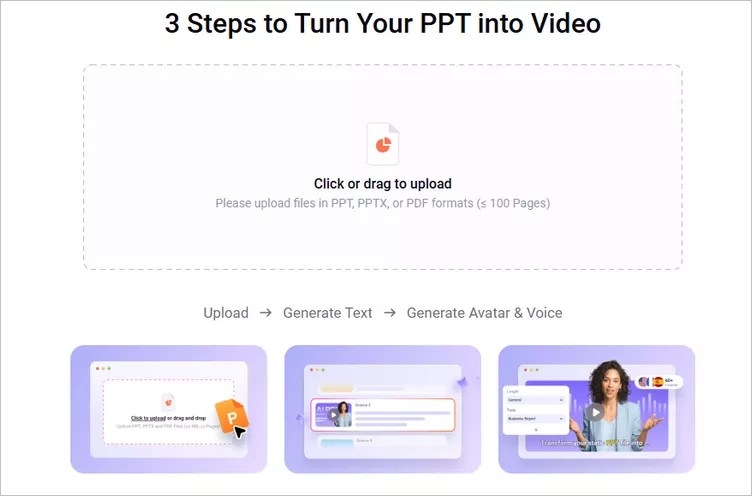
Image Board: Convert PPT to Video with AI Narration: Upload
Step 2 Auto-Generate and Customize Script for Video Outline
Once uploaded, FlexClip's AI generates a structured video script based on your content, creating a clear outline for your presentation video. You can customize the script to improve the overall flow and storytelling.
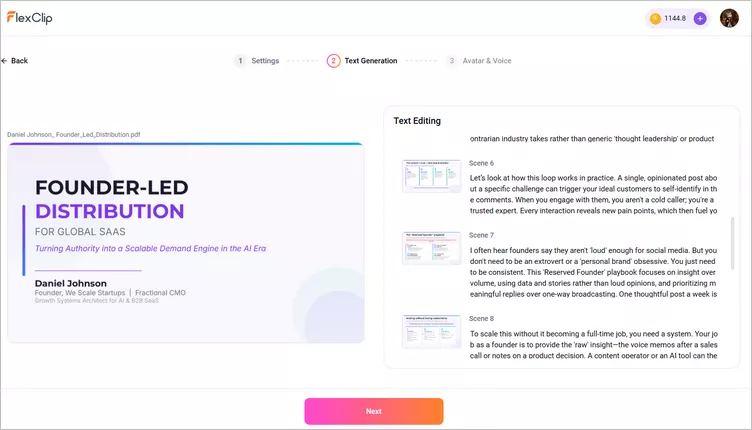
Image Board: Convert PPT to Video with AI Narration: Script
Step 3 Choose Presenter and Voice for Narration
Next, choose from a range of AI avatars and voices to bring your content to life. The right presenter can boost learner engagement and improve retention. Preview different avatar and voice to find the perfect match for your content's tone and audience.
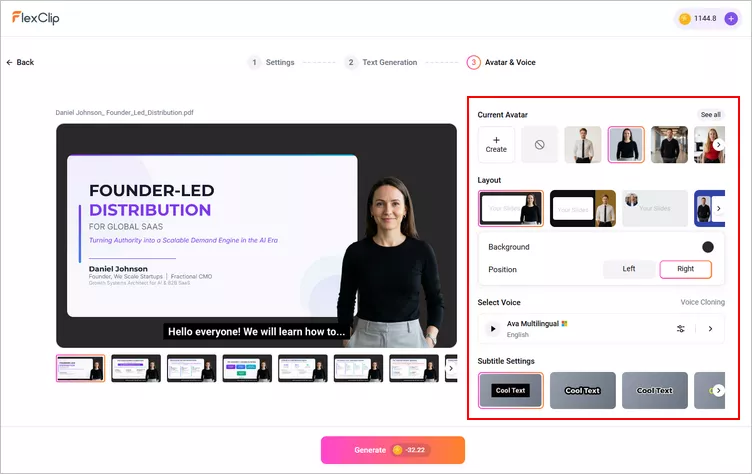
Image Board: Convert PPT to Video with AI Narration: Avatar
Step 4 Generate and Preview Your Presentation Video
After confirming the script and narration setting, click the Generate button to turn your Powerpoint into a narrated video. FlexClip will automatically create an expressive video featuring an AI avatar with natural movements, realistic gestures, and seamless lip-syncing that perfectly matches your script.
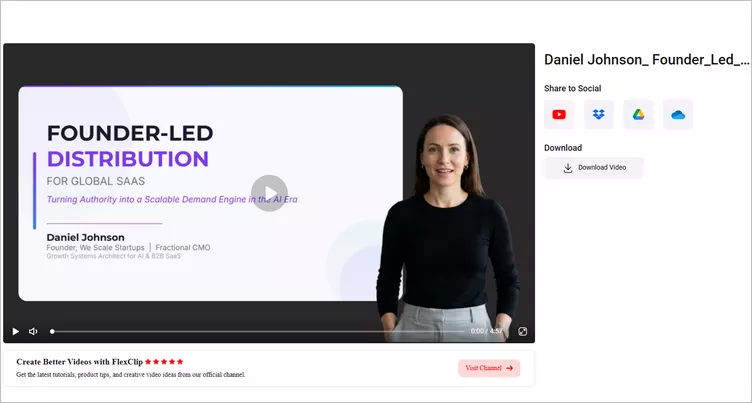
Image Board: Convert PPT to Video with AI Narration: Generate
Step 5(Optional) Further Edit Your Presentation Video
Turning your Powerpoint into videos with FlexClip is just the beginning! Its built-in video editor gives you everything you need to refine your recordings and add a personal touch. Easily trim clips, customize transitions, adjust background music, highlight important text, and enhance your videos with animated effects and sound effects. Feel free to have a try now.
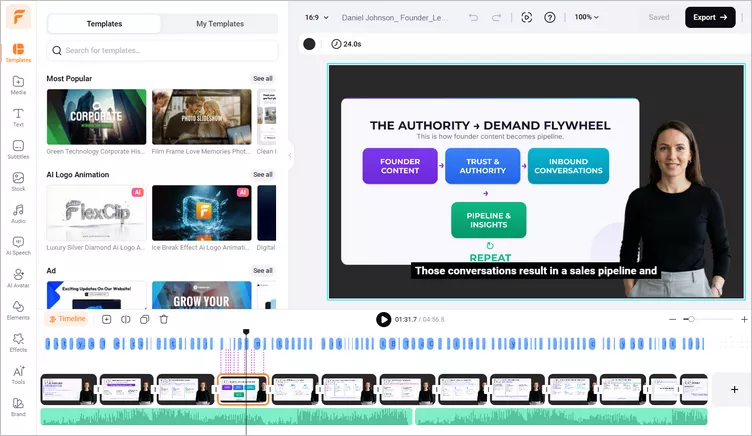
Image Board: Convert PPT to Video with AI Narration: Edit
More Ways to Convert Your PowerPoint to Video
While FlexClip's AI PPT-to-Video converter is a quick way to turn your PowerPoint into a video, there are also other approaches worth exploring. Let’s discover them together.
Convert PPT to Video with PowerPoint's Built-in "Export to Video" Feature
In fact, the PowerPoint 2010 and later versions allow users to convert their PPT files to video format for free without using a third-party tool or a program. After you've created your presentation, follow the simple steps below to convert your ppt into a video with PowerPoint.
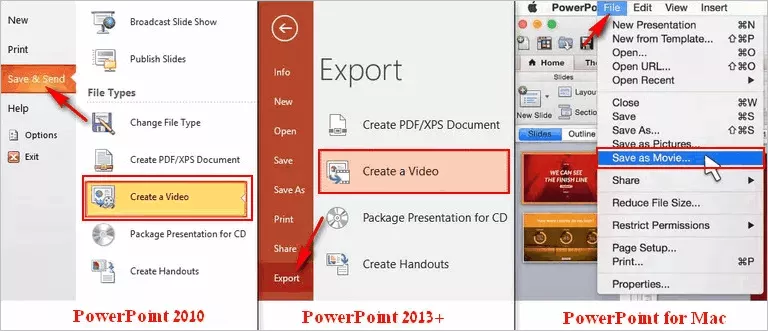
Image Board:PPT to Video with PowerPoint
Convert PPT to Video by Recording Your Powerpoint Presentation
If you want to include your voice or webcam in the final video, recording your presentation is a great option. Tools like OBS Studio and Zoom let you capture your screen while presenting. Alternatively, you can use FlexClip's online screen recorder to easily record your PowerPoint, webcam, and voice simultaneously with just one click—making the entire process faster and more convenient.
Now, let's walk through the simple steps below to learn how to record your PowerPoint presentation as a video using FlexClip's free screen recorder.
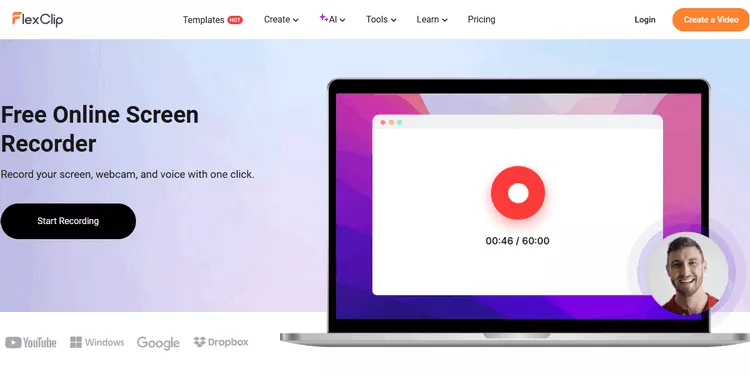
Convert PPT to Video by Recording Your Powerpoint Presentation
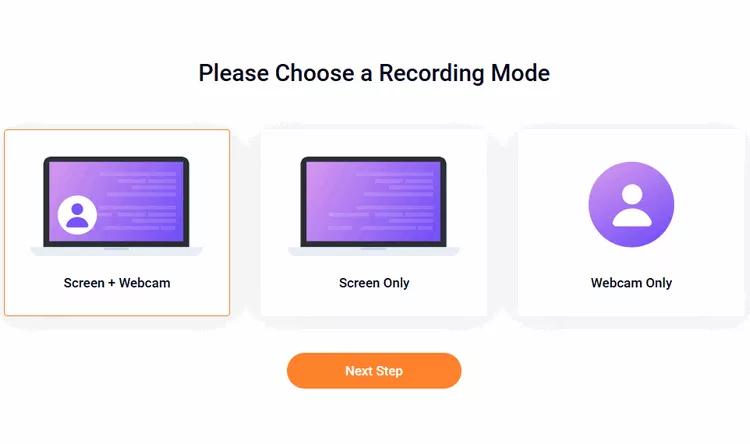
Make Settings for the Recording Process in FlexClip
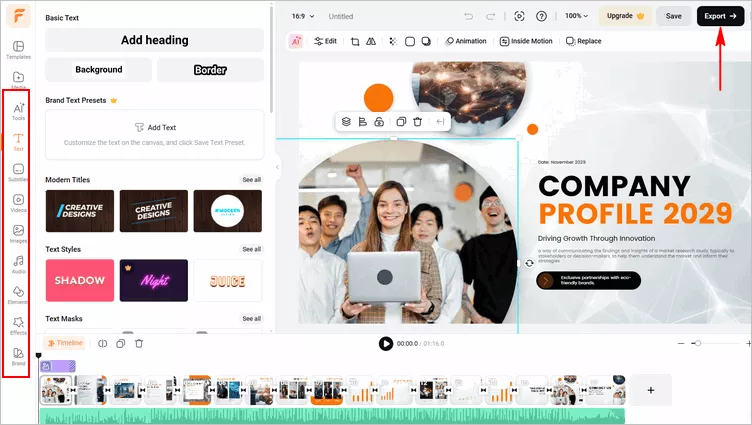
Add Personal Touch in FlexClip's Editor and Download it to Local File
Final Words
As you can see, converting the PowerPoint to a video is pretty easy. Hopefully, this tutorial is helpful for you. If you want to edit your presentation video with stylish text animation, cool transitions, and more effects, don't forget to try FlexClip.




FlexClip AI Video Maker
Reach professional-quality videos faster with easy editing tools, templates, and smart AI.
Start Now for Free
Hot & Trending
-

Best Ways to Find Music in YouTube Videos
-

Instagram Story Video Quality Bad After Upload? Fix It!
-

How to Repost Video on TikTok & How to Remove TikTok Repost
-

Improve Video Quality Online: 3 AI Video Quality Enhancers You Can't Miss
-

4K Convert to HD 1080p without Watermark: Best 4k Video Converters
-

Best 8 Free Video Editors - No Download Required
-

Top 13 Birthday Video Makers with Music and Effects Free
-

How to Search Filters on TikTok & Use a Filter You See - TikTok Filter Guide