Cinematic Logo Animations Arrived! Drop a Logo, Get a Jaw-Dropping Intro.

Put Two Photos Side by Side Using 3 Excellent Side by Side Photo Editors

Last Updated: 2026. 04. 01

Many social media users may want to include more photos in an overall picture when they post photos on social channels. You can easily place two photos side by side to create comparisons, before-and-after photos, collages, and social media content. Therefore, we’ll recommend 3 excellent side by side photo editors for you to put and edit multiple photos side by side easily. Let’s begin!
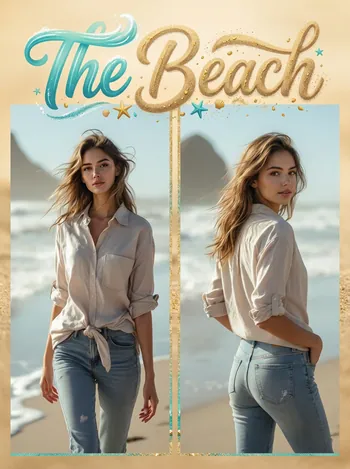
FlexClip's Example Photo

FlexClip's Example Photo

Moreover, there are many free, customizable templates below to help you put two photos side by side directly and boost your photos’ visuals at the same time.


Travel Vlog Opener Collage
Preview
Travel Vlog Opener Collage
Use This Template
Italy City Walk Memories Photo Collage Slideshow
Preview
Italy City Walk Memories Photo Collage Slideshow
Use This Template
Simple Bokeh Wedding Memory Photo Collage Slideshow
Preview
Simple Bokeh Wedding Memory Photo Collage Slideshow
Use This Template
Love Wedding Story Film Polaroid Photo Collage Romantic Marry Party Memories Slideshow
Preview
Love Wedding Story Film Polaroid Photo Collage Romantic Marry Party Memories Slideshow
Use This Template

Part 1 Excellent Side by Side Photo Editor - FlexClip

FlexClip is not only a side by side photo maker but also a side by side photo editor. It allows you to put two photos side by side easily and edit it as you like. FlexClip lets you place two photos side by side directly in your browser—no downloads or installation required. You can arrange two and more images to create stunning side by side photo collages!
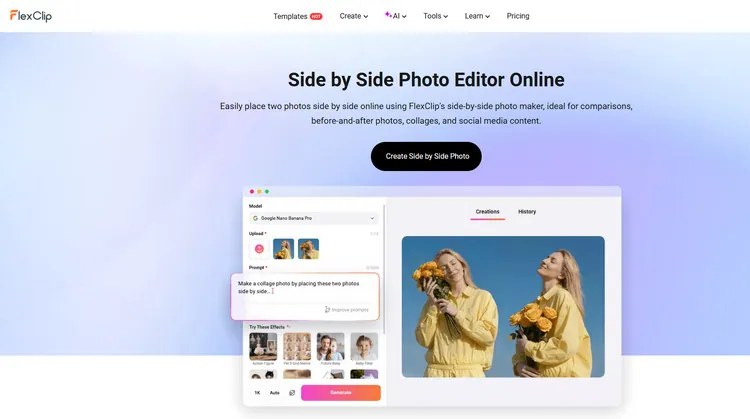
  • Put 2 photos side by side directly with AI - FlexClip’s AI side by side photo editor will automatically places two or more photos together vertically or horizontally according to your needs. Just describe your desired side-by-side photo look, then FlexClip’s AI will put 2 photos side by side or in a more professional collage. Besides, FlexClip’s AI side by side photo editor also allows you to bring your creative vision to life. You can enter prompts to add text, change backgrounds, and so on effortlessly.
  • Side by Side Photo Editor

    Side by Side Photo Editor

  • Easily put two photos side by side manually - FlexClip allows you to put two photos side by side manually as you need. To put two photos side by side, you can easily apply images to the canvas by dragging and dropping. No matter where you want to put two photos, you can adjust their location with its Align feature in a few clicks. With just a few clicks, you can combine multiple photos into a single, professional collage.
  • Offer diverse collage templates to save your energy: It offers diverse collage templates to put two photos side by side directly so that save your energy and time. You can find a wide amount of photo collage templates in different ratios to suit different social channels, like TikTok or YouTube. If you want to put two photos side by side, you can easily drag and drop the photo materials to replace the original templates in FlexClip.
  • Templates Library - FlexClip

    Templates Library - FlexClip

  • Allow to edit side-by-side photos as you like: After you’ve put two photos side by side, and you can edit two photos side by side to meet your demand. You can change the photo order, add a frame to the image, and adjust its margins, thickness, and colors. Text and filters are also indispensable ways to level up your image. And FlexClip also provides new stickers in its elements library for you to level up your photo.
  • How to Edit Two Photos Side by Side Online in FlexClip
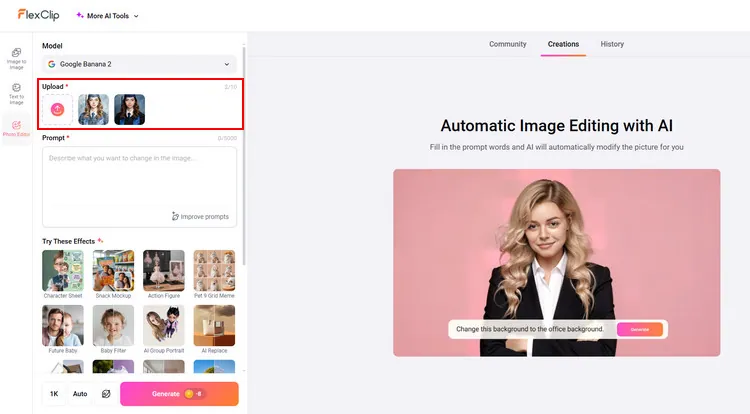
    Step 1
    Access FlexClip’s AI side by side photo editor and upload two images you want to make a side by side picture collage.
    Upload Your Photos - FlexClip

    Upload Your Photos - FlexClip
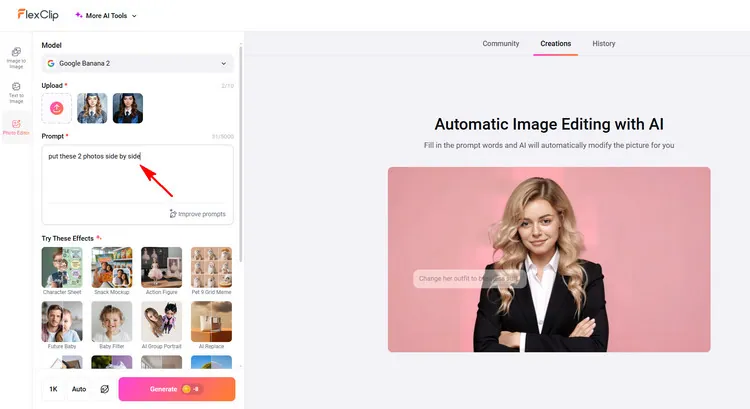
    Step 2
    You can type a creative side by side prompt in the prompt box to define your side by side photo style. Click the Generate button and its AI will turn your uploads into a polished side-by-side photo.
    Type Prompts - FlexClip

    Type Prompts - FlexClip

    Step 3
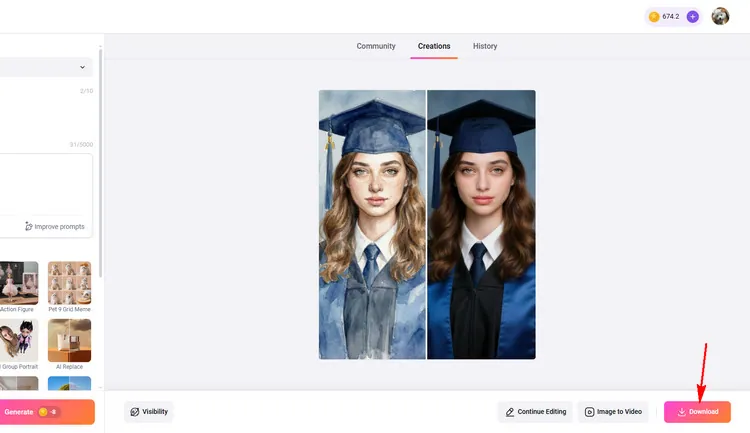
    When you are done with the side by side photo process, you can directly save this new image to a local folder or continue editing according to your needs.
    Download Your Photo- FlexClip

    Download Your Photo - FlexClip

    Part 2 Excellent Side by Side Photo Editor - CapCut

    If you are worrying about finding a suitable side by side picture editor, CapCut photo editor is a great support to assist you in creating side-by-side pictures with diverse collages and frames.

    Its photo grid maker allows you to experience multiple stunning two-grid collages with different shapes and sizes. It has multiple free two-image templates with different styles. All are well-designed with distinct tones for you to choose from. Then, you can customize your own collages as you like. There are various shapes of frames, from oval and heart to torn paper, for your free choices.

    Side by Side Photo Editor - CapCut

    Side by Side Photo Editor - CapCut

    Step 1
    Here, you need to upload your images. You can drop your files directly from Google Drive or Dropbox to CapCut for further editing.
    Step 2
    After completing uploading your favorite pictures, it’s time to create stunning side by side pictures. Click “Collage” on the right side and select your favorite for further editing. There are different sizes of two-grid collages to choose from.
    Step 3
    Having finished the editing jobs, choose “Export” to download your edited photos to your devices. CapCut online photo offers you various customized options such as size or file formats. One special thing is that you can convert your pictures into different file types, from PDF, JPEG, or PNG, with support from CapCut.

    Part 3 Excellent Side by Side Photo Editor - Fotor

    Fotor allows you to create side by side photos in seconds with its free online side by side photo maker. You can effortlessly combine and arrange two or more images to create stunning side by side collages. It allows you to put two photos side by side in a fast and easy way.

    Fotor’s side by side photo maker is not only easy to use but also offers a wide range of customization options. You can adjust border thickness and colors, apply rounded corners to your images, arrange images horizontally or vertically, add stickers, photo frames, and text, apply photo filters, and so much more.
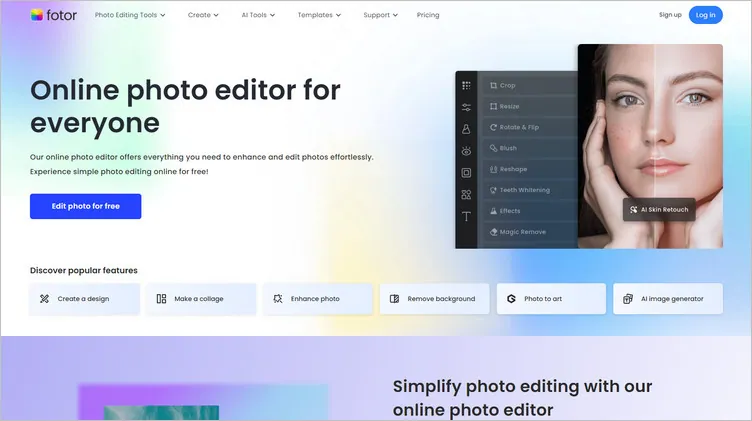
    Side by Side Photo Editor - Fotor
    Step 1
    Create side by side photos is a breeze with Fotor. Firstly, click the “Get Started Now” button and upload two or more photos you want to display side by side.
    Step 2
    Drag your photos into the grid. You can change photo order, adjust border margins, thickness, and colors, add text, apply photo filters, and more to achieve the desired composition.
    Step 3
    Once you're satisfied, click the “Download ” button to save your side by side photo in high-quality image file to your device or share it directly on social media platforms with a single click.

    Some Final Words

    Now that you know the three excellent side by side photo editors, choose your favorite side by side photo editor and make your own gorgeous photo collage.

    Group 11
    Make a free video online
    Create Your First Video With FlexClip Now
    Get Started - Free